Often we try to access the internet and the error pops up “DNS Server is Not Responding”, which is quite common.
You need to check the internet connection to see if it's working or not. If it is working on other devices, that means the problem is with your computer. If the internet is not working on other devices, it means you need to check your ISP or router.
In most cases, your computer’s DNS server might be unavailable or it stops working abruptly.
This error can occur due to various reasons and can be solved with just a few simple steps.
Top 7 Solutions to fix “DNS Server Not Responding” error:
1. Uninstall and Reinstall Network Drivers:
Many people have found this solution to resolve the DNS error. To fix the “DNS server not responding” issue on your Windows 10, here’s what you need to do:
Go into the Control Panel and search for “Device Manager”.
Click on the Device Manager and look up for “Network Adapters”.
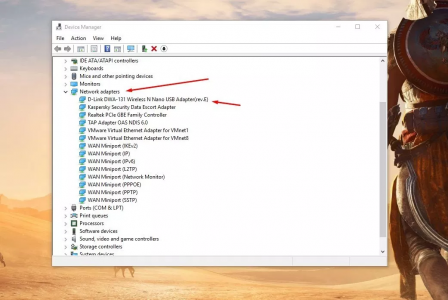
Double click on “Network Adapters” and you will see various network connections.
Right click on your active network connection and select “Uninstall device”.
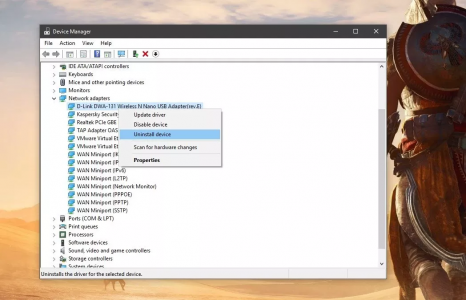
Now simply right click on any other adapter option and select “Scan for hardware changes”. The same uninstalled driver will reappear. If it does not appear, disconnect and reconnect your Wi-Fi adapter/cable connection.
Most likely, the DNS error will be resolved and your internet connection should be working by now!
2. Manually Set A DNS Server
The DNS server of your ISP might face temporary downtime, so you might require another DNS server to access the internet.
If you already have a custom DNS server, you can try out other alternatives such as Cisco OpenDNS or Google Public DNS.
To set up your DNS server to Google’s free DNS server, follow these simple steps:
Go to the Control Panel >> Network and Internet >> Network and Sharing Center.
Click on “Change adapter options” on the left pane and your connection type will appear.
Right-click on your current connection, whether it is Ethernet, Wi-Fi or Local Area Connection and select “Properties”.
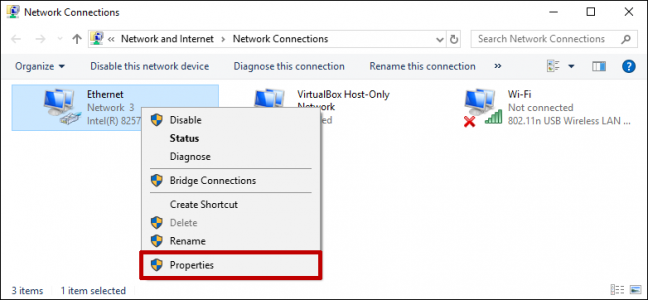
Click on “Internet Protocol Version 4 (TCP/IPv4)” and click on the “Properties” below.
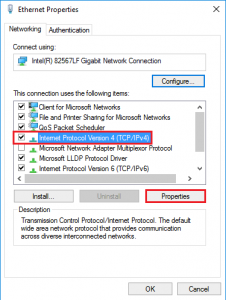
In this window, select “Use the following DNS server addresses”.
Enter 8.8.8.8 into the “Preferred DNS Server”
Enter 8.8.4.4 as the “Alternate DNS Server”
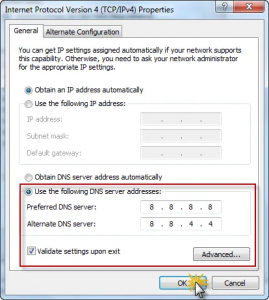
Click “OK” and it will save changes.
See if this has resolved your “DNS server not responding” error.
3. Configure the TCP/IP settings:
For this follow the same steps as above:
Go to Control Panel >> Network and Internet >> Network and Sharing Center.
Click on the “Change adapter settings” from the left pane.
Select your connection type and click on Properties.
Select Internet Protocol Version 6 (TCP/IPv6), click on Properties.
Click on “Obtain an IPv6 address automatically” and “Obtain DNS servers address automatically” and click “OK”.
Select Internet Protocol Version 4 (TCP/IPv4) and click on Properties
Click on “Obtain an IP address automatically” and “Obtain DNS servers address automatically” and click “OK”.